RODC Operations
The edit screen of an RODC (Read-Only Domain Controller) computer object is opened by right-clicking the RODC in the Domain Controllers organizational unit in the Tree and selecting Edit. In addition to the standard computer edit fields, this screen contains the RODC-specific Password Replication Policy section.
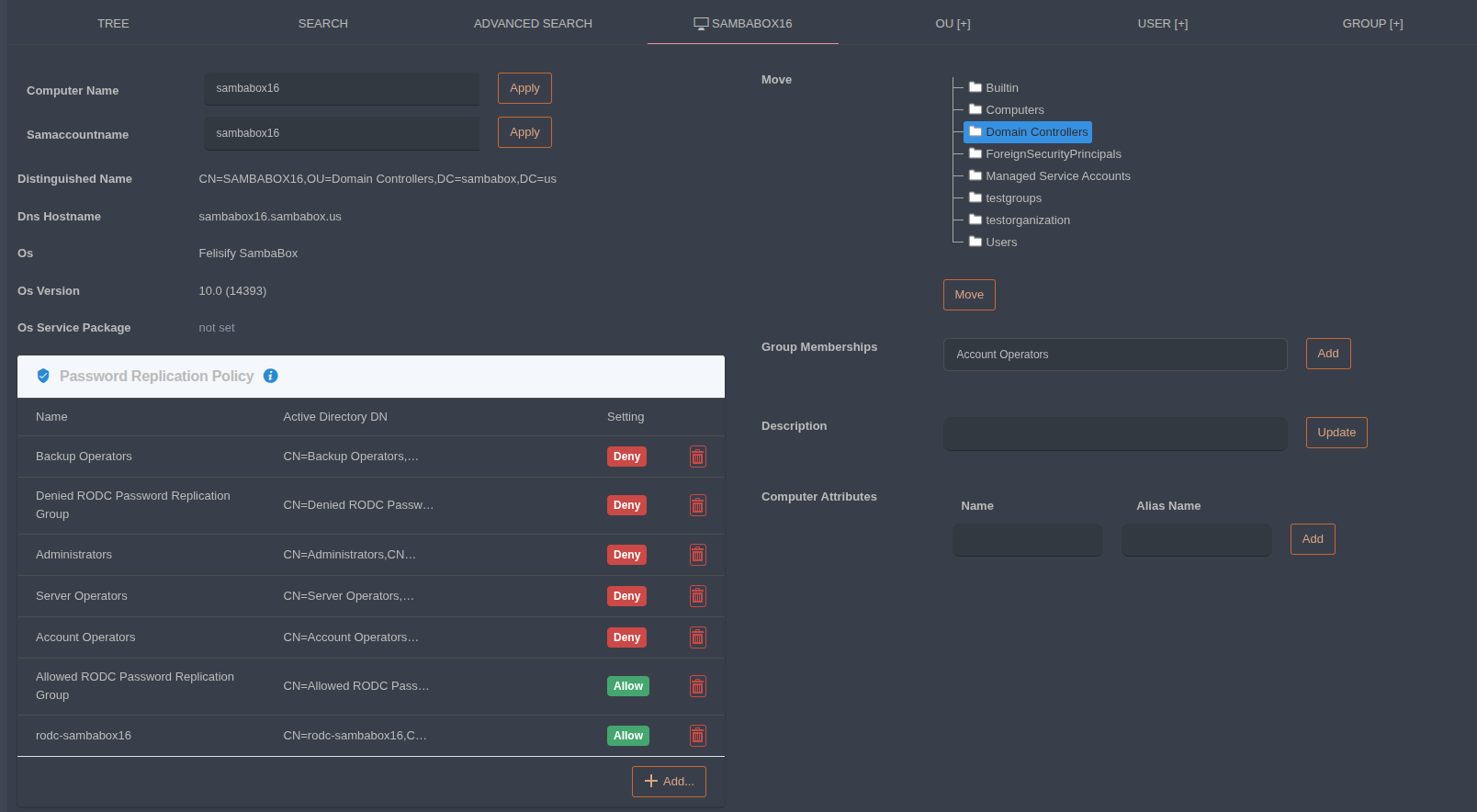
General Information
Computer Name: The computer name of the RODC. Enter a new value and click Apply to change it.
Samaccountname: The account name of the RODC. Updated with the Apply button.
Distinguished Name: The full path of the object in the directory.
Dns Hostname: The fully qualified domain name (FQDN) of the RODC.
Os / Os Version / Os Service Package: Operating system information of the RODC.
Password Replication Policy
The Password Replication Policy determines which users, computers and groups can have their passwords cached on this RODC. The table lists the following for each entry:
Name: The name of the user, group or computer.
Active Directory DN: The distinguished name of the object.
Setting: The policy type.
Allow: The password of the object (or its members, if it is a group) can be cached on the RODC.
Deny: The password of the object (or its members, if it is a group) cannot be cached on the RODC.
Use the trash icon next to an entry to remove it from the policy. Use the Add… button to add a new object to the policy.
By default, the Administrators, Server Operators, Backup Operators, Account Operators and Denied RODC Password Replication Group groups are set to Deny, and the Allowed RODC Password Replication Group group is set to Allow.
Note
If an object is covered by both Allow and Deny, Deny takes precedence. It is recommended not to remove the default Deny entries so that passwords of privileged accounts are not stored on the RODC.
Tip
Passwords of objects set to Allow can be preloaded into the RODC with the RODC Preload screen.
Other Operations
Move: Select a target organizational unit in the tree and click Move to move the object.
Group Memberships: Lists the groups the RODC computer account is a member of; use Add to add it to another group.
Description: Enter a description and click Update to save it.
Computer Attributes: Enter a Name and Alias Name and click Add to add an attribute to the object.